In 2010, I purchased my first laptop and first thing that I did was to buy an Antivirus to protect my Windows PC, but in 2026, I use Windows Defender and haven’t purchased an antivirus since. This shows how mature Windows has become and it provides security software natively now.
Every internet-connected computer is a potential target. Phishing emails, ransomware, malicious downloads, and unpatched software vulnerabilities aren’t just enterprise problems anymore — they’re aimed at home users, students, remote workers, and small businesses just as often as large corporations. What’s changed is how much protection is now built directly into Windows itself, rather than left entirely to third-party antivirus software.
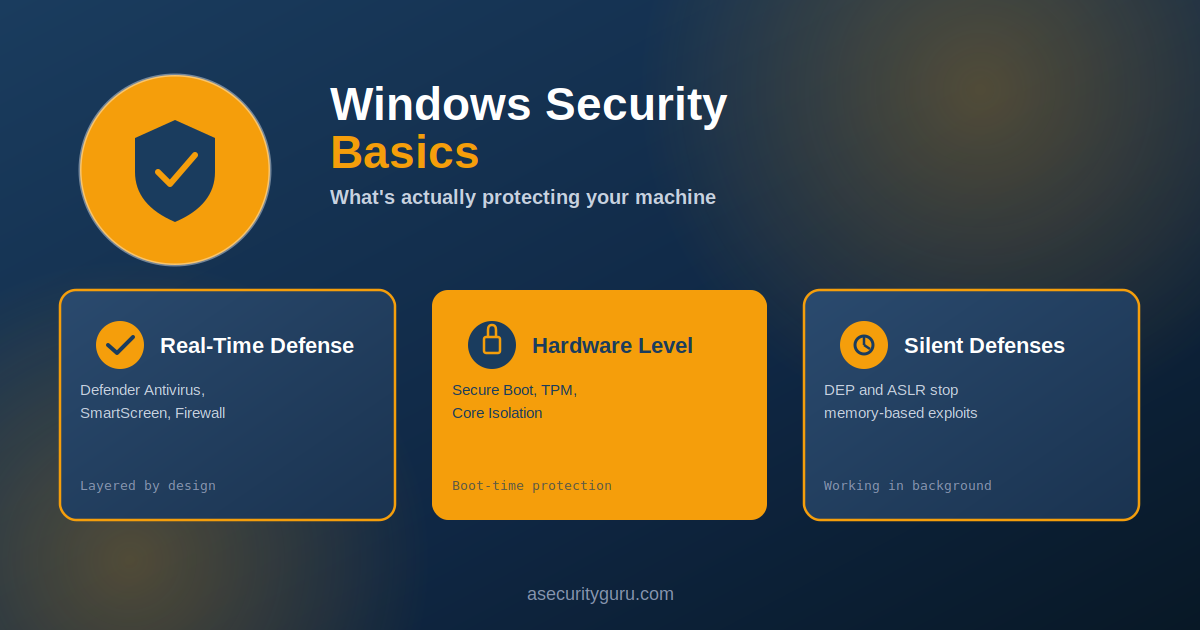
Modern versions of Windows ship with Windows Security — a genuinely comprehensive, layered defense system, not just a bundled antivirus scanner. It combines hardware-based security, firewall protection, secure authentication, exploit mitigation, and malware detection into a single coordinated system, rather than relying on any one technology to catch everything.
What Windows Security Actually Is
Windows Security is Microsoft’s centralized security platform for Windows 10 and 11, providing real-time defense against ransomware, malware, phishing, unauthorized access, and common exploitation techniques. Unlike traditional antivirus software that only scans for known malicious files, Windows Security protects the entire computing environment — from the moment the machine boots up until it shuts down.
Its core goals:
- Detect and block malware before it executes
- Protect personal files from unauthorized access
- Secure network connections
- Prevent attackers from exploiting software vulnerabilities
- Safeguard credentials and encryption keys
- Continuously monitor the system for suspicious activity
Think of Windows Security less as a single guard and more as a team of specialists, each covering a different part of the system, working together rather than depending on any one of them to catch everything.
The Core Components
| Feature | Purpose | Why It Matters |
|---|---|---|
| Virus & Threat Protection | Detects and removes malware using Microsoft Defender Antivirus | Stops viruses, ransomware, spyware, and trojans before they cause damage |
| Firewall & Network Protection | Monitors network traffic | Prevents hackers and unauthorized devices from accessing your computer |
| Account Protection | Secures user authentication | Protects your identity with Windows Hello, PINs, and biometric authentication |
| App & Browser Control | Uses Microsoft Defender SmartScreen | Blocks phishing websites, unsafe downloads, and untrusted applications |
| Device Security | Manages TPM, Secure Boot, and Core Isolation | Protects the operating system from firmware-level and boot-time attacks |
These layers work together deliberately — the design assumption is that any single layer might eventually be bypassed, so the system stays protected even if one defense fails.
Virus and Threat Protection: The First Line of Defense
Microsoft Defender Antivirus is the foundation of Windows Security. It continuously scans downloaded files, running applications, email attachments, USB devices, and background processes, using real-time protection and cloud-based threat intelligence to catch both known malware and newer, previously unseen threats.
Users have four scan options available:
- Quick Scan — checks the most common malware locations
- Full Scan — examines the entire system
- Custom Scan — targets specific folders or drives
- Offline Scan — detects persistent malware that tries to hide during normal system operation
Network and Firewall Security
Every time your computer connects to the internet, it exchanges thousands of data packets with other systems. Windows Defender Firewall acts as a checkpoint, examining these connections and blocking suspicious traffic before it reaches your machine.
The firewall automatically adjusts its rules depending on the network type — public Wi-Fi (airports, hotels, cafes), corporate domain networks, or private home/office networks. Public Wi-Fi triggers stricter rules specifically because it carries a higher risk of unwanted access. Without a firewall, attackers can scan a system for open ports and vulnerable services with relatively little effort.
Account Security: Protecting Your Identity
Weak passwords remain one of the most common causes of security breaches. Account Protection addresses this by promoting stronger authentication methods:
- Fingerprint authentication
- Secure PIN
- Multi-Factor Authentication (MFA)
- Windows Hello facial recognition
Biometric credentials never leave the device, making them significantly harder for an attacker to steal compared to a password that can be phished, guessed, or leaked in a breach. These additional authentication layers also provide protection even if a Microsoft account password is compromised elsewhere.
App and Browser Control
Many cyberattacks start with a single click on a malicious website or download. Microsoft Defender SmartScreen analyzes webpages, downloaded files, and applications before they’re opened, and can:
- Warn about phishing websites
- Block suspicious downloads
- Prevent untrusted applications from executing
- Flag files with poor security reputations
This proactive filtering stops a meaningful share of attacks before they ever reach the point of execution.
Device Security: Hardware-Level Protection
Some attacks target a system before Windows has even finished loading. Windows counters this with hardware-based protections:
- Secure Boot — ensures only trusted software loads during startup
- Core Isolation — separates critical OS processes from untrusted applications
- Memory Integrity — prevents malicious drivers from modifying protected memory
- Trusted Platform Module (TPM) — securely stores cryptographic keys and supports features like BitLocker
Combined, these give the operating system a genuinely trustworthy foundation to build the rest of its security on.
Under the Hood: Protections You Never See
A few of Windows’ strongest defenses work silently in the background, without any visible UI.
Data Execution Prevention (DEP) stops attackers from running malicious code in memory regions that are meant only for data storage — defeating many traditional buffer overflow attacks outright.
Address Space Layout Randomization (ASLR) randomizes the memory locations of critical system components every time Windows starts, making it much harder for an attacker to predict where key libraries will be located — a prerequisite for many exploitation techniques.
| Technology | Security Benefit |
|---|---|
| DEP | Prevents injected code from running |
| ASLR | Randomizes memory addresses to disrupt exploit techniques |
Together, DEP and ASLR substantially raise the difficulty of successful memory-based attacks — this is why so many older exploitation techniques simply stopped working on modern Windows systems.
Raghu’s Expert Take
It is very important to keep updating your windows version because after the advent of AI, many CVEs are being identified in Windows and they keep on releasing patches to fix such vulnerabilities. So make sure you apply your security patch as soon as it is available.
Best Practices for Every Windows User
Even the strongest built-in protections perform best paired with good habits:
- Keep Windows updated
- Enable Microsoft Defender’s real-time protection
- Leave Windows Defender Firewall turned on
- Use Windows Hello or multi-factor authentication
- Download software only from trusted sources
- Back up important files regularly
- Avoid clicking unknown email attachments or suspicious links
- Review your Windows Security dashboard periodically
User awareness remains just as important to security as the technology itself — no built-in protection compensates entirely for risky behavior.
Frequently Asked Questions
Do I still need third-party antivirus if I’m using Windows Security? For most home users, Windows Security’s built-in protection (Microsoft Defender Antivirus, SmartScreen, Firewall) provides solid, tested coverage. Organizations with specific compliance requirements or advanced threat detection needs may still layer additional endpoint protection on top, but it’s no longer a strict necessity the way it was in earlier Windows versions.
What’s the difference between DEP and ASLR? DEP prevents code execution in memory regions meant only for data, directly blocking a class of buffer overflow attacks. ASLR randomizes where system components sit in memory, making it harder for an attacker to know where to target an exploit in the first place. They address different stages of the same underlying attack class and are typically deployed together.
Does Windows Security protect against ransomware specifically? Yes — Microsoft Defender Antivirus includes ransomware-specific detection, and features like Controlled Folder Access can block unauthorized applications from modifying files in protected folders, adding a layer specifically aimed at ransomware behavior beyond generic malware detection.
Is Windows Hello more secure than a password? Generally yes, for a specific reason: biometric data used by Windows Hello never leaves the device, unlike a password which can be phished, intercepted, or leaked from a breached database elsewhere. This significantly reduces the most common attack vectors used against traditional passwords.
What should I do if Windows Security flags something and I’m not sure if it’s a false positive? Avoid overriding the warning without understanding why it triggered. Research the specific file or site being flagged, check the publisher/source, and when in doubt, treat the warning as valid — false positives happen, but the cost of ignoring a real detection is usually far higher than the inconvenience of double-checking.
Next Steps
For the broader principles behind why layered protection matters more than any single tool, see Core Security Principles Every Engineer Should Know. For how these controls fit into a security engineer’s daily thinking, see What Does a Security Engineer Actually Do?
For structured, hands-on learning across DevSecOps, Application Security, and AI Security, explore Raghu’s courses on Udemy.
Sources and References
- Microsoft: Windows Security Overview — official documentation for Windows Security features
- Microsoft: Data Execution Prevention — technical reference for DEP
- Microsoft: Address Space Layout Randomization — technical reference for ASLR
- ASecurityGuru: Core Security Principles Every Engineer Should Know
- ASecurityGuru: What Does a Security Engineer Actually Do?
Raghu the Security Expert has 20 years of experience in Security, DevSecOps, AI Security, and Penetration Testing. He has helped 80,000+ students upskill themselves in DevSecOps, Application Security, and AI Security. Follow his work on LinkedIn, YouTube, and Udemy.