Last month, due to over permissible file permissions, an insider threat was able to access highly confidential PII data which they were not supposed to access. This happened just because a file has permissions 777 on the disk. This is one of the most common issues with misconfigured file permissions.
Most people assume that saving, moving, and deleting files is simple. But behind every graphical interface sits a genuinely complex filesystem, quietly enforcing ownership, managing permissions, and organizing data. Unix-like operating systems — Linux and macOS among them — build their entire security model around ownership, permissions, files, and directories. Understanding these concepts explains a lot that otherwise seems mysterious: why a deleted file can still occupy disk space, why a folder sometimes blocks access even when you’re sure you have permission, and why getting permissions right is genuinely foundational to cybersecurity, not just an administrative detail.
What Is a Filesystem?
Before getting into the more surprising behaviors, it helps to be clear on what a filesystem actually is. A filesystem is the organizational structure an operating system uses to store, retrieve, and manage data on storage devices — hard drives, SSDs, removable media. Rather than files being scattered arbitrarily across a disk, the filesystem maintains an ordered hierarchy of directories, metadata, and storage blocks, which is what makes finding and retrieving information fast and reliable.
Different operating systems implement different filesystem technologies. Windows primarily uses NTFS, macOS uses Apple File System (APFS), and Linux commonly uses Ext4, XFS, or Btrfs. Despite differences in performance, scalability, and advanced features, they all share the same core functions: organizing files, allocating storage space, maintaining metadata, and enforcing security through permissions.
File Permissions and Ownership
One of the defining features of Unix-like systems is a genuinely robust permission model. Unlike early personal computers, Linux and macOS were designed from the start as multi-user systems — multiple people accessing the same machine at once — so every file and directory needs a permission model controlling who can read, modify, or execute it, specifically to prevent unauthorized access.
Every filesystem object is associated with three categories:
- Owner — the user who owns the file
- Group — members of the file’s assigned group
- Others — everyone else on the system
Each category gets three fundamental permissions:
| Permission | On a File | On a Directory |
|---|---|---|
| Read (r) | View file contents | List directory contents |
| Write (w) | Modify the file | Create, delete, or rename files |
| Execute (x) | Run the file as a program | Traverse or access files inside the directory |
These show up in a permission string like rwxr-x---, which breaks down to:
- Owner: Read, Write, Execute
- Group: Read, Execute
- Others: No permissions
The commands that manage this every day:
| Command | Purpose |
|---|---|
ls -l | View permissions and ownership |
stat | Display detailed file metadata, including the inode number |
chmod | Change file or directory permissions |
chown | Change file owner |
chgrp | Change group ownership |
These commands form the foundation of everyday filesystem administration, and they’re essential for troubleshooting permission issues, securing sensitive files, and managing multi-user systems.
The Hidden Identity of Files: Inodes
The inode (index node) is one of the core concepts in Unix-like filesystems. Users think of a file by its name — report.pdf, photo.jpg — but internally, the operating system identifies every file by its inode number instead.
Nearly all of a file’s metadata lives in its inode:
- File ownership
- Access permissions
- File size
- Creation and modification timestamps
- Location of data blocks on disk
- Link count
Interestingly, the inode itself doesn’t contain the filename. Instead, directories maintain a table mapping inode numbers to filenames. This separation of a file’s identity from its name is exactly what allows multiple filenames to reference the same inode through hard links.
Five Counter-Intuitive Truths About Filesystems
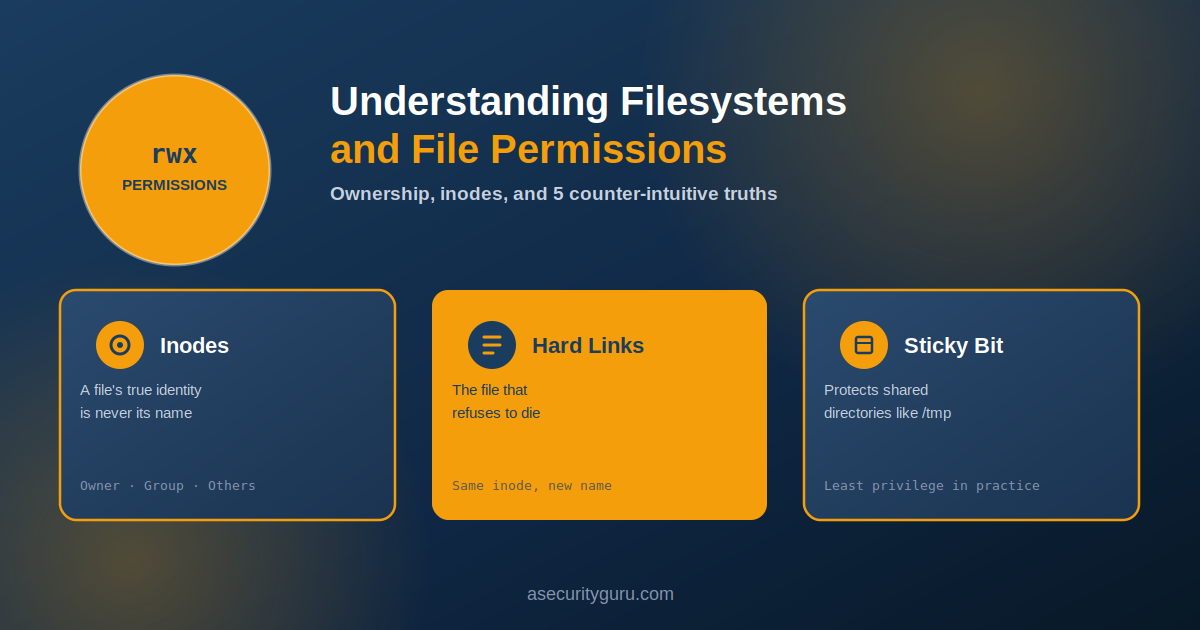
Once you understand how files, directories, ownership, and permissions actually work, several behaviors that seem strange at first start making complete sense. Separating filenames from file identity, requiring execute permission just to enter a directory, allowing multiple filenames to point at the same underlying file — each of these looks counterintuitive on the surface, but plays a genuinely important role in performance, security, and reliability.
1. The Execute Trap: Why Reading a Folder Isn’t Enough
Read, write, and execute permissions behave differently on directories than they do on files. Read permission on a directory lets you list the filenames inside it — but not actually access those files. To open a file’s contents or metadata by entering a directory, you need execute permission on that directory too. Without it, you can see filenames but can’t interact with anything.
There’s an interesting edge case here: a directory can have execute permission without read permission. In that scenario, you can’t list the directory’s contents — but if you already know a specific filename, you can still access it directly, since the operating system can resolve the path through the directory without needing to list it.
It’s a bit like standing outside a locked library — even knowing a book’s title doesn’t get you the book without the key.
Key insight: read lists a directory’s contents; execute is what actually lets you access files or traverse into it.
2. Hard Links: The File That Refuses to Die
Most people are familiar with symbolic (soft) links — pointers to another file that break if the original is deleted. Hard links work differently, because they point directly to the same inode as the original file rather than to a filename.
Since a filename in Unix-like systems is really just a pointer to an inode, creating a hard link doesn’t duplicate the file — it just adds another filename pointing at the same inode. Deleting one filename doesn’t erase the underlying data; the file is only actually removed once the last hard link pointing to that inode is deleted.
Key insight: a hard link isn’t a copy of a file — it’s another name for the exact same file.
3. APFS Snapshots: The Stealth Storage Eaters
Apple File System (APFS) supports snapshots — capturing a volume’s state at a specific moment in time. Creating a snapshot is nearly instantaneous because only filesystem metadata is copied initially.
Snapshots rely on a copy-on-write approach: rather than overwriting existing data, modified files get written to new storage blocks, while the original blocks are preserved for the snapshot. This means a fresh snapshot takes up very little space — but as the underlying files continue to change or get deleted, the snapshot gradually consumes more and more storage to preserve what it originally captured.
This also explains why deleting a snapshot often takes noticeably longer than creating one — the filesystem has to work out exactly which data blocks are no longer referenced by anything before it can reclaim that storage.
Key insight: snapshots are cheap to create, but they can quietly accumulate significant storage usage over time.
4. The Sticky Bit: Protecting Shared Directories
Normally, anyone with write permission on a directory can delete or rename any file inside it — even files they don’t own. The sticky bit changes that behavior.
When the sticky bit is set on a directory, users can still create and edit their own files, but they can no longer delete or rename files belonging to other users. Only the file’s owner, the directory’s owner, or the superuser can remove those files.
This is exactly why shared directories like /tmp use the sticky bit — it keeps a genuinely shared space usable without users accidentally (or deliberately) destroying each other’s files.
Key insight: the sticky bit stops users in a shared directory from touching files that aren’t theirs.
5. The Unix Philosophy: “Everything Is a File”
One of Unix’s foundational design principles is that nearly everything — hardware devices, directories, terminals, regular documents — is accessed through the same file interface and permission model.
Terminal interfaces like /dev/tty and storage devices like /dev/sda are represented as special files. Even directories themselves are a kind of special file, maintaining the mapping between filenames and inodes described earlier. This unified design means the same commands, permissions, and programming interfaces work consistently across wildly different kinds of system resources.
Key insight: treating everything as a file is what makes Unix-like operating systems simpler, more consistent, and easier to reason about securely.
Why File Permissions Matter for Security
File permissions aren’t just an administrative convenience — they’re a core part of operating system security. Properly configured permissions uphold the Principle of Least Privilege, ensuring users and applications only get the access genuinely required for their task.
Misconfigured permissions are a frequent, real cause of security incidents. Overly permissive access on important configuration files can expose credentials, encryption keys, or other sensitive data. A world-writable directory can let an unauthorized user modify or replace program files outright. Attackers routinely exploit exactly these kinds of permission misconfigurations during privilege escalation attacks, to gain access far beyond what they should have.
A common real-world example: a configuration file containing database credentials gets accidentally made world-readable. An attacker who compromises even a low-privileged account can simply read that file and walk away with sensitive credentials — no exploit required, just a permission mistake. Similarly, directories with overly permissive write access can let a malicious actor replace legitimate scripts with malware, or tamper with application files directly.
Administrators manage ownership and permissions with chmod, chown, and chgrp, and modern Unix systems also support Access Control Lists (ACLs) for more granular authorization beyond the basic owner/group/other model. Regularly reviewing file permissions, restricting unnecessary write access, and protecting critical system directories are all genuinely important habits — not just best-practice checkbox items.
Raghu’s Expert Take
While reviewing permissions on a file system, always check, which users are accessing the file, what is their role, what is their entitlement and then decide the access level of the files. Manually performing this reviewing is quite difficult, hence, use tools like AWS IAM Access Analyzer, Oracle Access Governance to review entitlements and permissions across the file system.
Frequently Asked Questions
Why can I sometimes still access a file even without read permission on its directory? If a directory has execute permission but not read permission, you can’t list its contents — but if you already know the exact filename, the operating system can still resolve the path directly. This is the “execute trap” edge case: knowing a file exists is enough to reach it, even without being able to browse for it.
What’s the actual difference between a hard link and a symbolic link? A hard link points directly to the same inode as the original file — it’s genuinely another name for the same file, and the data survives as long as any hard link to it still exists. A symbolic link is a separate file that simply points to another file’s path, and it breaks if that original file is deleted or moved.
Why does deleting an APFS snapshot take longer than creating one? Creating a snapshot only requires copying filesystem metadata, which is fast. Deleting one requires the filesystem to determine which data blocks are no longer referenced by anything else before reclaiming that storage — a more involved process, especially if a lot has changed since the snapshot was taken.
What’s the security risk of a world-writable directory? Anyone on the system — including a low-privileged or compromised account — can create, modify, or delete files inside it. This can allow an attacker to replace a legitimate script or binary with malicious code, which then executes with whatever privileges the original file had.
Do I need to understand inodes to manage file permissions effectively? Not for everyday use, but it helps significantly when troubleshooting more unusual behavior — like why a file’s data doesn’t disappear immediately after being deleted, or how hard links actually work. For security work specifically, understanding inodes makes permission and ownership issues much easier to reason about.
Next Steps
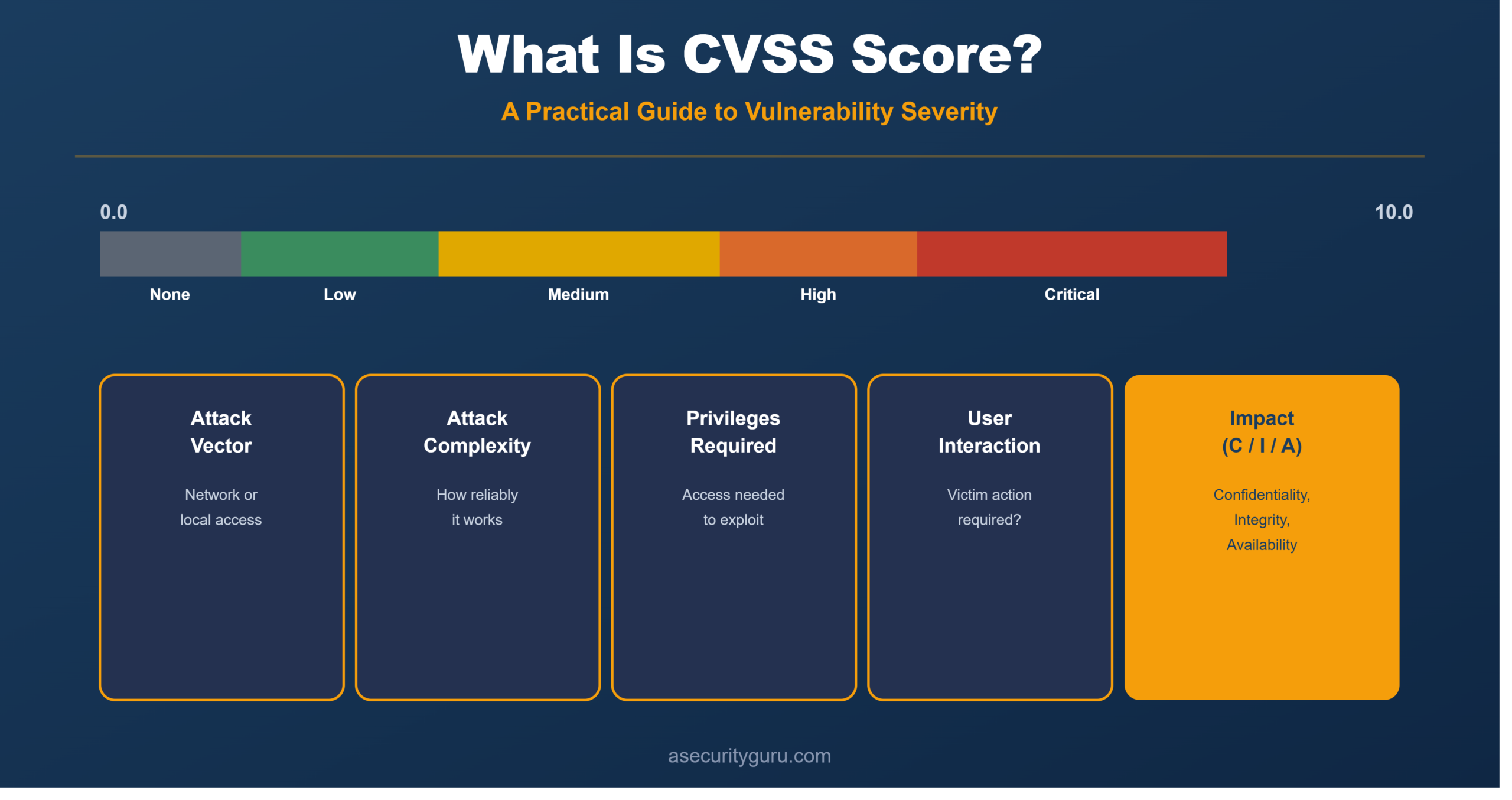
For the broader security principles these permission concepts support, see Core Security Principles Every Engineer Should Know, particularly the discussion of least privilege. For how misconfigurations like these get scored and prioritized when discovered, see What Is CVSS Score? Severity Ratings Explained.
For structured, hands-on learning across DevSecOps, Application Security, and AI Security, explore Raghu’s courses on Udemy.
Sources and References
- Linux man pages: chmod(1) — official reference for permission management
- Apple Developer Documentation: About Apple File System — official APFS technical reference
- OWASP: File Permission Vulnerabilities — reference on permission-related security risks
- ASecurityGuru: Core Security Principles Every Engineer Should Know
- ASecurityGuru: What Is CVSS Score?
Raghu the Security Expert has 20 years of experience in Security, DevSecOps, AI Security, and Penetration Testing. He has helped 80,000+ students upskill themselves in DevSecOps, Application Security, and AI Security. Follow his work on LinkedIn, YouTube, and Udemy.