

GitHub Repo: terraform-ec2-jenkins-aws-k8s-infra-creation (490+ forks) Udemy Course: DevSecOps & DevOps with Jenkins, Kubernetes, Terraform & AWS
I was creating an AWS EC2 instance and then deployed Jenkins on it using AWS UI. After 2-3 iterations, I realized that I was wasting around 15-20 mins performing the same steps for my DevSecOps pipeline. I thought let’s automate it using Terraform and it is actually a breeze after it. Now, I create my entire infrastructure required for my DevSecOps pipeline using Terraform and tear it down using 1 single command.
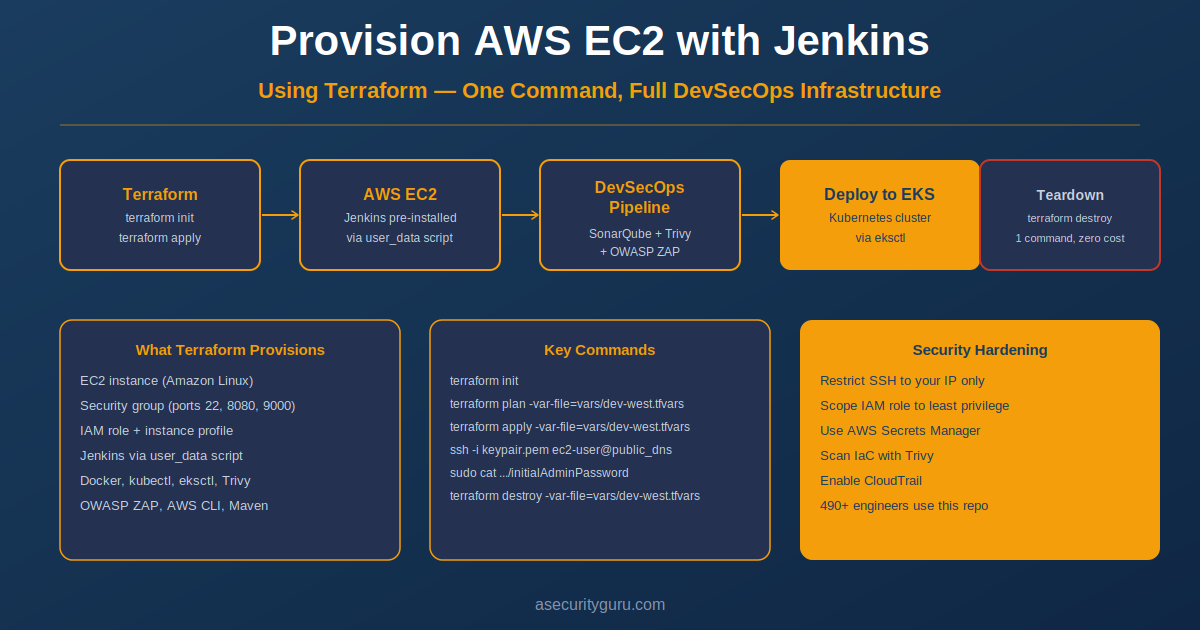
If you’ve ever spent an afternoon manually clicking through the AWS console to spin up a Jenkins server — creating the EC2 instance, configuring security groups, installing Java, installing Jenkins, waiting, configuring again — you already understand why Infrastructure as Code exists. This post walks you through using Terraform to provision the entire AWS infrastructure for a Jenkins-based DevSecOps pipeline in a single command, using the same repo that over 490 engineers have already forked and used in production.
By the end you’ll have:
- An AWS EC2 instance with Jenkins pre-installed and running
- A security group with the right ports open for Jenkins (8080) and SSH (22)
- An IAM role with the permissions Jenkins needs to interact with AWS services
- A foundation you can extend into a full DevSecOps pipeline with SonarQube, Trivy, and Kubernetes
Configure Terraform on Windows
Prerequisites
Before running this Terraform configuration, you need:
- Terraform CLI installed on your local machine (Terraform installation guide)
- AWS CLI installed and configured with access keys (
aws configure) - An AWS account with permissions to create EC2 instances, security groups, and IAM roles
- An AWS key pair created in your target region (you’ll need the
.pemfile to SSH in) - Git to clone the repository
If you’re new to Terraform basics, the Terraform language documentation is the authoritative reference.
Understanding the Repo Structure
Clone the repo first:
git clone https://github.com/asecurityguru/terraform-ec2-jenkins-aws-k8s-infra-creation.git
cd terraform-ec2-jenkins-aws-k8s-infra-creation
The key files you’ll interact with:
main.tf— the core Terraform configuration: EC2 instance, security group, IAM role, and theuser_datashell script that installs Jenkins automatically on first bootvars/— variable files for different environments (e.g.,dev-west.tfvars)install_jenkins.sh— the shell script Terraform passes to EC2 asuser_data, which handles the Jenkins installation, Java, Docker, kubectl, AWS CLI, and other DevSecOps toolingoutputs.tf— defines what Terraform outputs after apply (public DNS, instance ID)
What the Terraform Script Actually Does
The main.tf provisions four things:
1. EC2 Instance An Amazon Linux EC2 instance in your specified region. The instance type is configurable via the vars file — for a Jenkins server running a full DevSecOps pipeline (SonarQube, Docker builds, kubectl), t2.large or larger is recommended. The user_data field passes the install_jenkins.sh script to the instance on first boot, meaning Jenkins is installed and running before you even SSH in.
2. Security Group Opens the minimum required ports:
- Port 22 (SSH) — for initial access and configuration
- Port 8080 (Jenkins UI) — for accessing Jenkins in your browser
- Port 9000 (SonarQube) — if you’re running SonarQube on the same instance
3. IAM Role and Instance Profile Attaches an IAM role to the EC2 instance so Jenkins can interact with AWS services (ECR for container images, EKS for Kubernetes deployments) without needing to hardcode AWS credentials in the pipeline. The principle of least privilege applies here — scope the IAM role to only what your pipeline actually needs.
4. The Jenkins Installation Script The install_jenkins.sh shell script installs:
- OpenJDK (Java runtime Jenkins requires)
- Jenkins itself
- Git, Maven
- Docker
- kubectl and eksctl (for Kubernetes cluster management)
- AWS CLI
- Additional DevSecOps tooling (Trivy for container scanning, OWASP ZAP for DAST)
Step-by-Step: Running the Terraform Configuration
Step 0: Initialize Terraform
Downloads the AWS provider plugin and prepares the working directory:
terraform initStep 1: Plan the Infrastructure
Shows you exactly what Terraform will create before it creates anything. Always review this before applying:
terraform plan -var-file="vars/dev-west.tfvars"Step 2: Apply — Provision the Infrastructure
Creates everything defined in main.tf. This typically takes 2-3 minutes:
terraform apply -var-file="vars/dev-west.tfvars"When complete, Terraform outputs the public DNS of your new EC2 instance.
Step 3: SSH Into the Instance
chmod 400 <your-keypair>.pem
ssh -i <your-keypair>.pem ec2-user@<public_dns>
Step 4: Get the Jenkins Admin Password
Jenkins generates a one-time admin password on first install. Retrieve it with:
sudo cat /var/lib/jenkins/secrets/initialAdminPasswordOpen http://<public_dns>:8080 in your browser, paste the password, install the recommended plugins, and create your admin user. Jenkins is now running.
Useful Commands After Setup
Once you have the instance running, these are the commands you’ll use most:
# Get Kubernetes cluster context information
cat /home/ec2-user/.kube/config

# Create a Kubernetes namespace
kubectl create namespace test

# Get deployments in a namespace
kubectl get deployments --namespace=test

# Get services in a namespace
kubectl get svc --namespace=test

# Delete all resources in a namespace
kubectl delete all --all -n test

# Clean up unused Docker images (important for disk space)
docker system prune

# Remove a specific Docker image
docker image rm <imagename>
Creating and Deleting an EKS Cluster
Once your Jenkins server is provisioned and your pipeline is configured, you’ll typically create an EKS cluster for your deployments:
# Create EKS cluster
eksctl create cluster \
  --name kubernetes-cluster \
  --region us-west-2 \
  --nodegroup-name linux-nodes \
  --node-type t2.xlarge \
  --nodes 2

# Delete EKS cluster when done
eksctl delete cluster --region=us-west-2 --name=kubernetes-cluster
Tearing Down the Infrastructure
When you’re done or want to reset, destroy everything Terraform created:
terraform destroy -var-file="vars/dev-west.tfvars"This terminates the EC2 instance, removes the security group and IAM role, and cleans up all resources — no lingering AWS costs.
Security Considerations
Although this is an example repo for practicing a DevSecOps pipeline for a Proof of Concept but for making it production ready, make sure to create EC2 instance and other AWS resources with least privilege, restrict SSH access to your IP only, use AWS Secrets Manager instead of environment variables for storing credentials, and enable CloudTrail. I have shared some hardening rules below:
Restrict SSH access. The default security group opens port 22 to 0.0.0.0/0 — accessible from anywhere. For real use, replace this with your specific IP range or connect via AWS Systems Manager Session Manager instead (no open port 22 required).
Scope the IAM role. The repo uses a broad IAM role for convenience. Before running production pipelines, narrow the IAM permissions to only what Jenkins actually needs: ECR push access, EKS describe/update access, and nothing else.
Store secrets properly. Jenkins credentials (SonarQube tokens, Docker Hub passwords, AWS keys) should be stored in Jenkins Credentials Manager or AWS Secrets Manager — never in Jenkinsfile or environment variables in plaintext.
Scan the pipeline itself. Adding Trivy to scan your infrastructure-as-code files and container images before deployment closes the loop on security — your pipeline provisions the infra, and the pipeline also validates it.
Raghu’s Expert Take
The most common mistake I have noticed is that the DevOps/DevSecOps/SRE engineers deploy the Terraform resources without taking into account the least privilege principle along with storing the sensitive values like tokens directly in the variable files of the IaC templates. Another common issue is the misconfiguration of these resources that result in the infrastructure compromise.
What’s Next: Building the Full DevSecOps Pipeline
This Terraform repo gets you a Jenkins server. The next steps in the full DevSecOps pipeline are:
- Configure Jenkins — install the required plugins (Docker Pipeline, AWS Credentials, Kubernetes CLI, SonarQube Scanner)
- Integrate SonarQube — connect Jenkins to SonarQube for SAST on every build
- Add Trivy — scan Docker images for CVEs before pushing to ECR
- Set up OWASP ZAP — add DAST scanning as a pipeline stage
- Deploy to Kubernetes — push Docker images to ECR, deploy to EKS via the Kubernetes CLI plugin
All of these stages are covered in depth — with working Jenkinsfiles, configuration walkthroughs, and troubleshooting — in the DevSecOps & DevOps with Jenkins, Kubernetes, Terraform & AWS course on Udemy.
Frequently Asked Questions
Why Terraform instead of CloudFormation? Terraform is cloud-agnostic — the same tooling and mental model works on AWS, Azure, and GCP. CloudFormation is AWS-only. For a DevSecOps engineer working across multiple cloud environments, Terraform is the more transferable skill.
What instance type should I use for the Jenkins server? For learning and basic pipelines, t2.medium works. For a pipeline that runs SonarQube, Docker builds, and Trivy scans concurrently, use t2.large (8GB RAM) minimum. Anything less and you’ll hit memory exhaustion mid-pipeline.
Can I run SonarQube on the same EC2 instance as Jenkins? Technically yes — the install script can be extended to install SonarQube too (port 9000 is already in the security group). But SonarQube alone requires 4GB+ RAM. Running it alongside Jenkins, Docker, and active builds on a single instance causes instability. For production, run SonarQube separately or use SonarCloud (SaaS).
How do I update the Terraform script for a newer Java version? The install_jenkins.sh script pins the Java and Jenkins versions. Jenkins now requires Java 17+. If you’re cloning the repo fresh, check the script and update the Java package to java-17-amazon-corretto and ensure Jenkins is pulling from its current LTS repository.
Is this repo safe to use for production workloads? The repo is built for learning and course use — it uses broad IAM permissions and open security groups for simplicity. Before using in production, apply the security hardening steps in the “Security Considerations” section above.
Resources
- GitHub Repo: terraform-ec2-jenkins-aws-k8s-infra-creation
- Udemy Course: DevSecOps & DevOps with Jenkins, Kubernetes, Terraform & AWS
- Terraform Docs: developer.hashicorp.com/terraform/language
- AWS EC2 Security Groups: docs.aws.amazon.com/vpc/latest/userguide/security-groups.html
- eksctl Docs: eksctl.io
- Related Post: Master GitOps with Terraform, AKS and AWS
Raghu the Security Expert has 20 years of experience in Security, DevSecOps, AI Security, and Penetration Testing. He has helped 80,000+ students upskill themselves in DevSecOps, Application Security, and AI Security. Follow his work on LinkedIn, YouTube, and Udemy.

That sounds like a really efficient way to set up Jenkins. I’ve been looking into using Terraform for infrastructure, so this is a great guide.